What Time Keeper Live shows
Each display is its own page in the browser. Combine them freely: in the stream, in the venue, at the announcer's desk.
In the livestream
Start list
Lane, name, club and entry time across the full width. In finals the qualifying time automatically replaces the entry time.

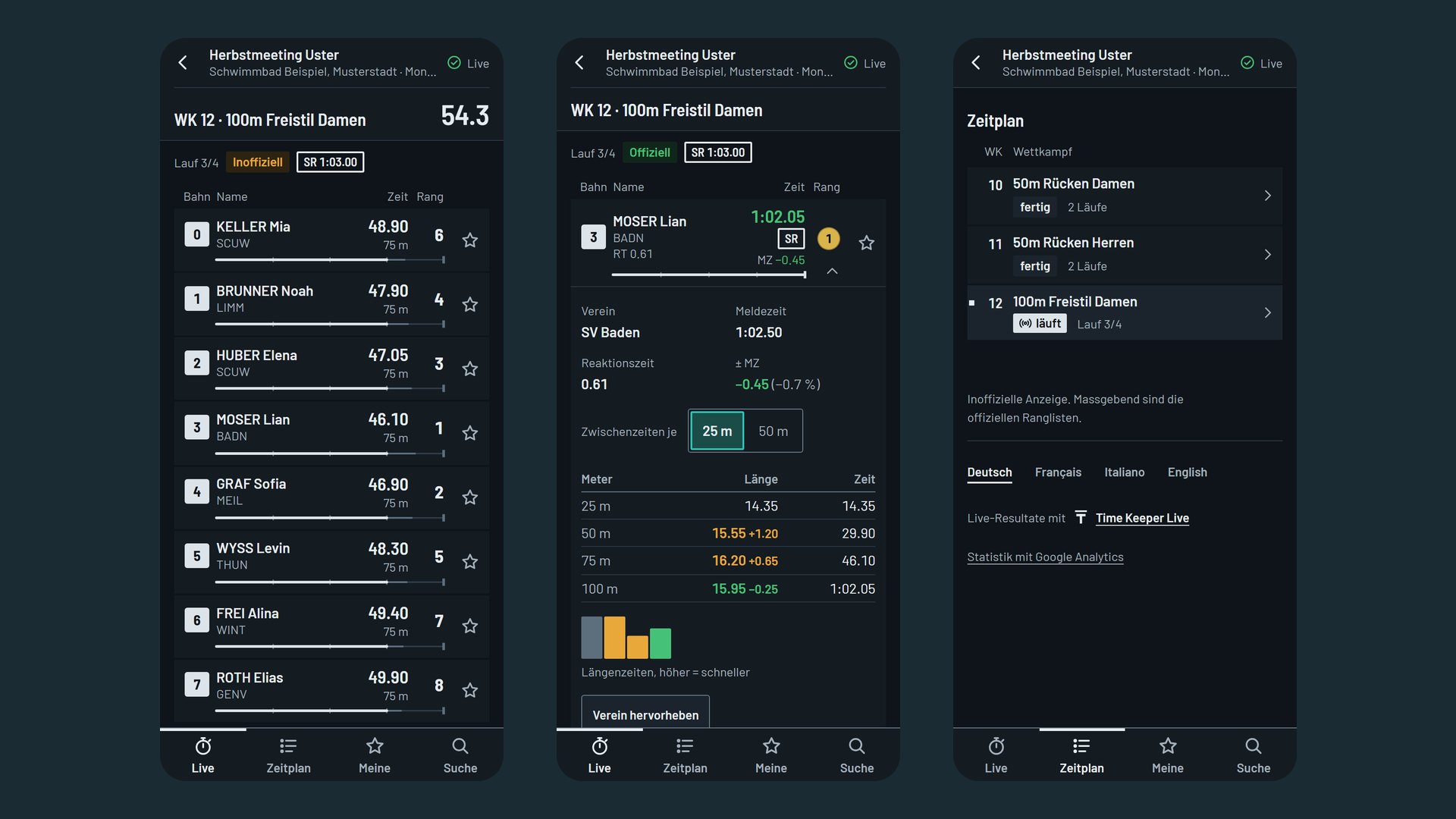
During the race
Compact tiles in two columns that keep re-sorting by race position: whoever is further ahead moves up. Lap times are coloured green or orange, and the bar with event, heat and clock stays visible throughout.

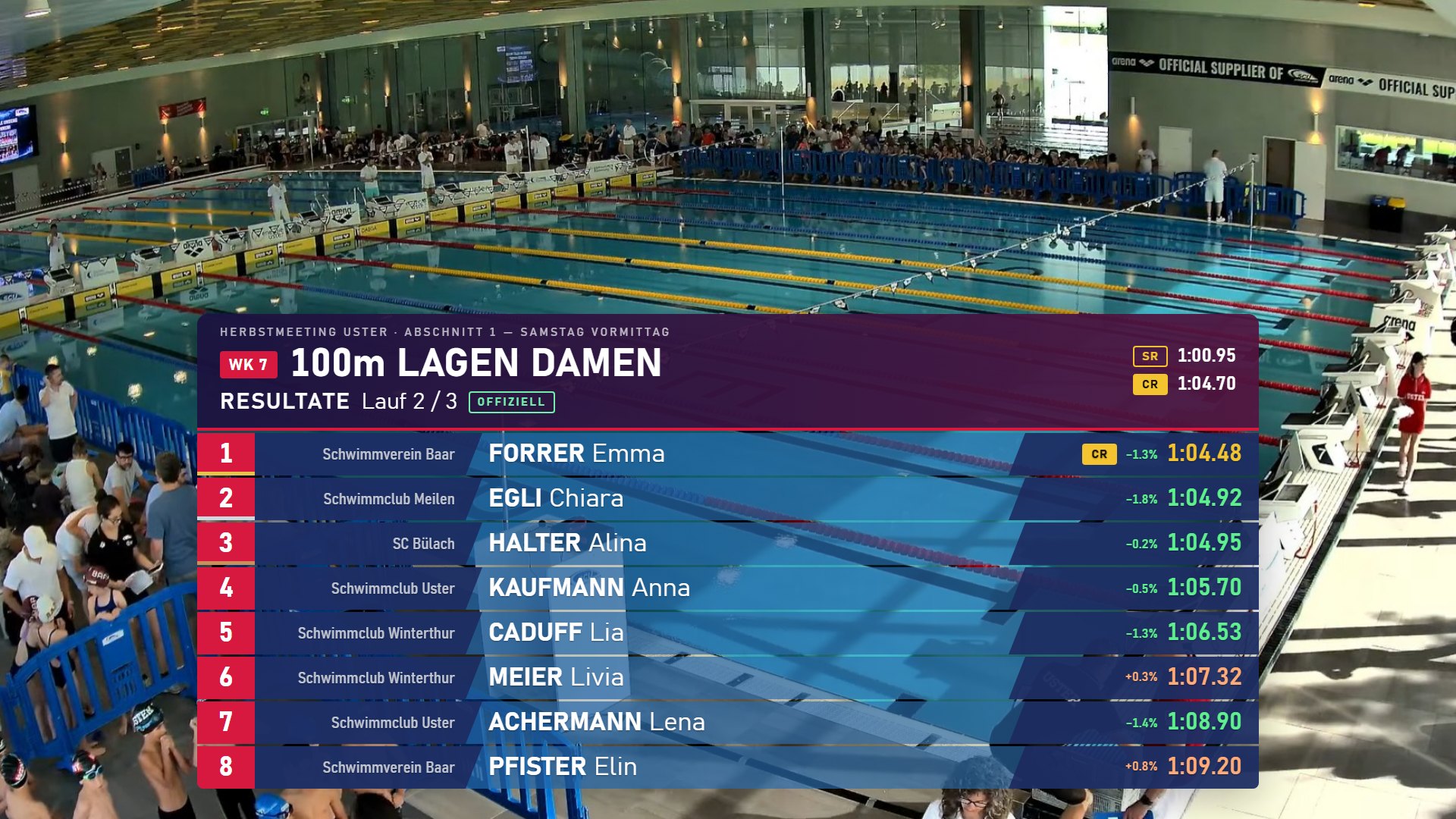
Official result
Once the result is made official, the full ranking with place, name, club, final time and a percentage comparison against the entry time.

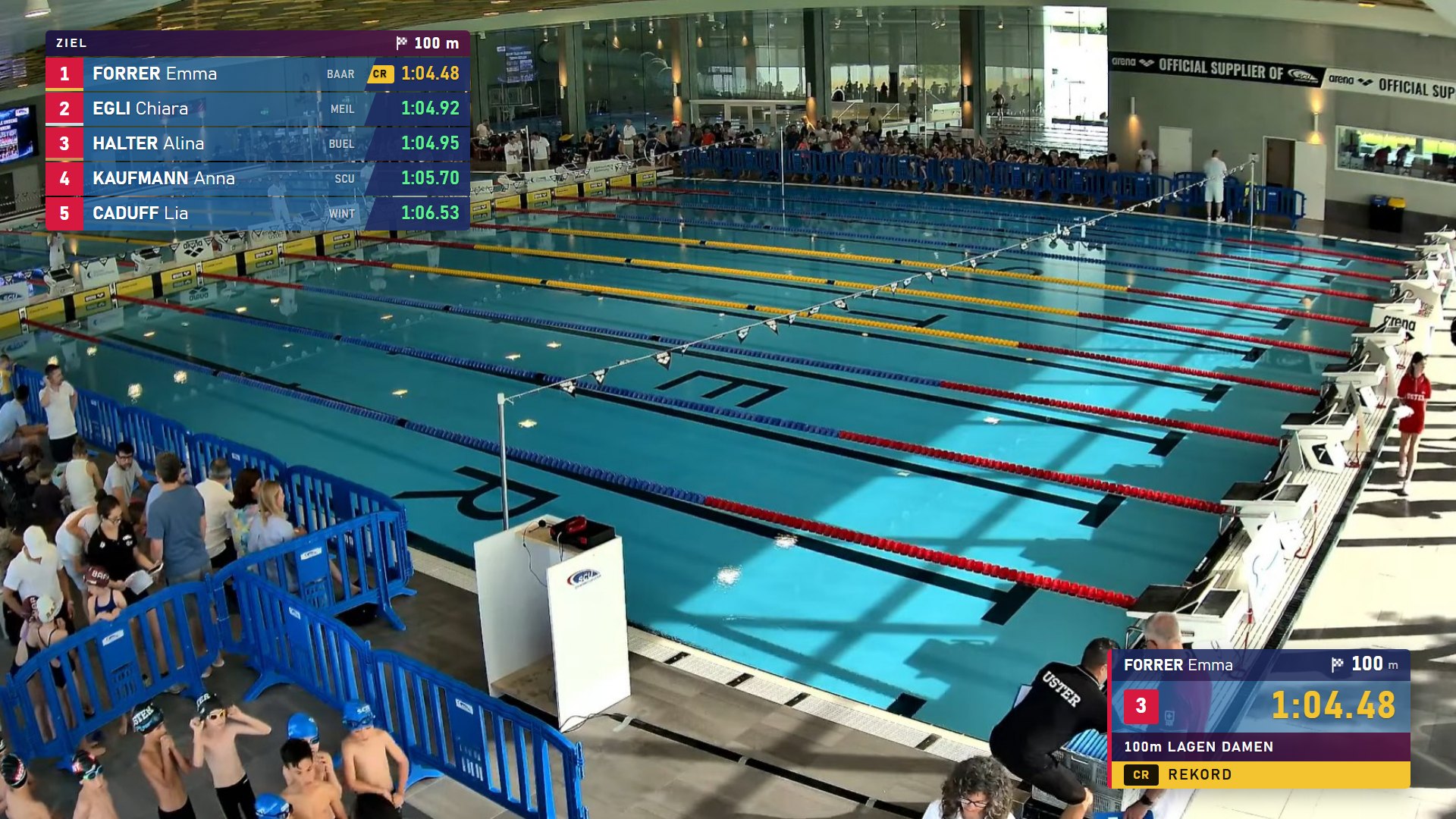
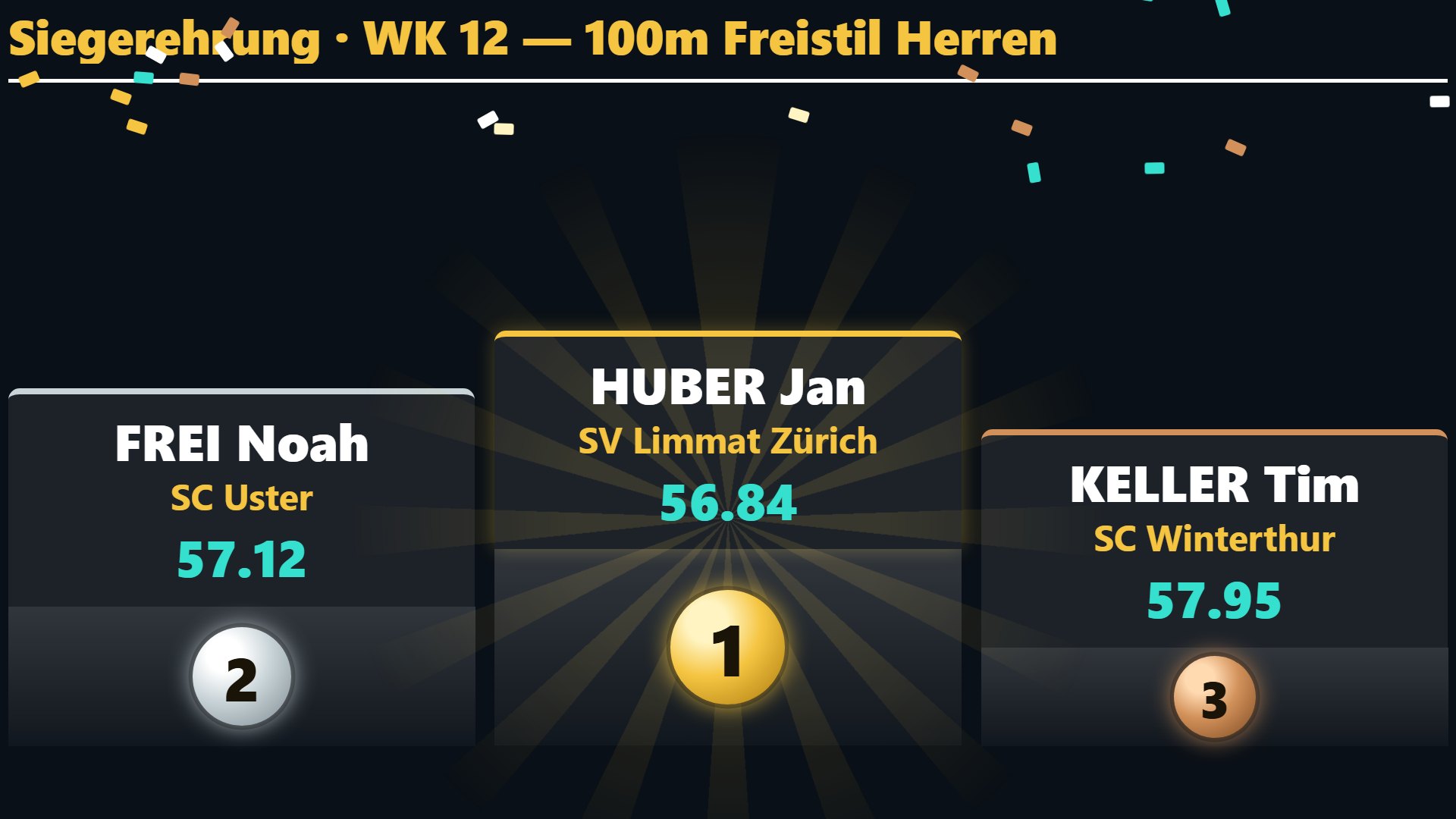
Victory ceremony
Podium with 2nd on the left, 1st in the centre, 3rd on the right: built up step by step so the announcer can talk along. Relays included, with all four names.

Flag for the anthem
A waving flag over the picture, nine countries to choose from: one click at the announcer's desk.

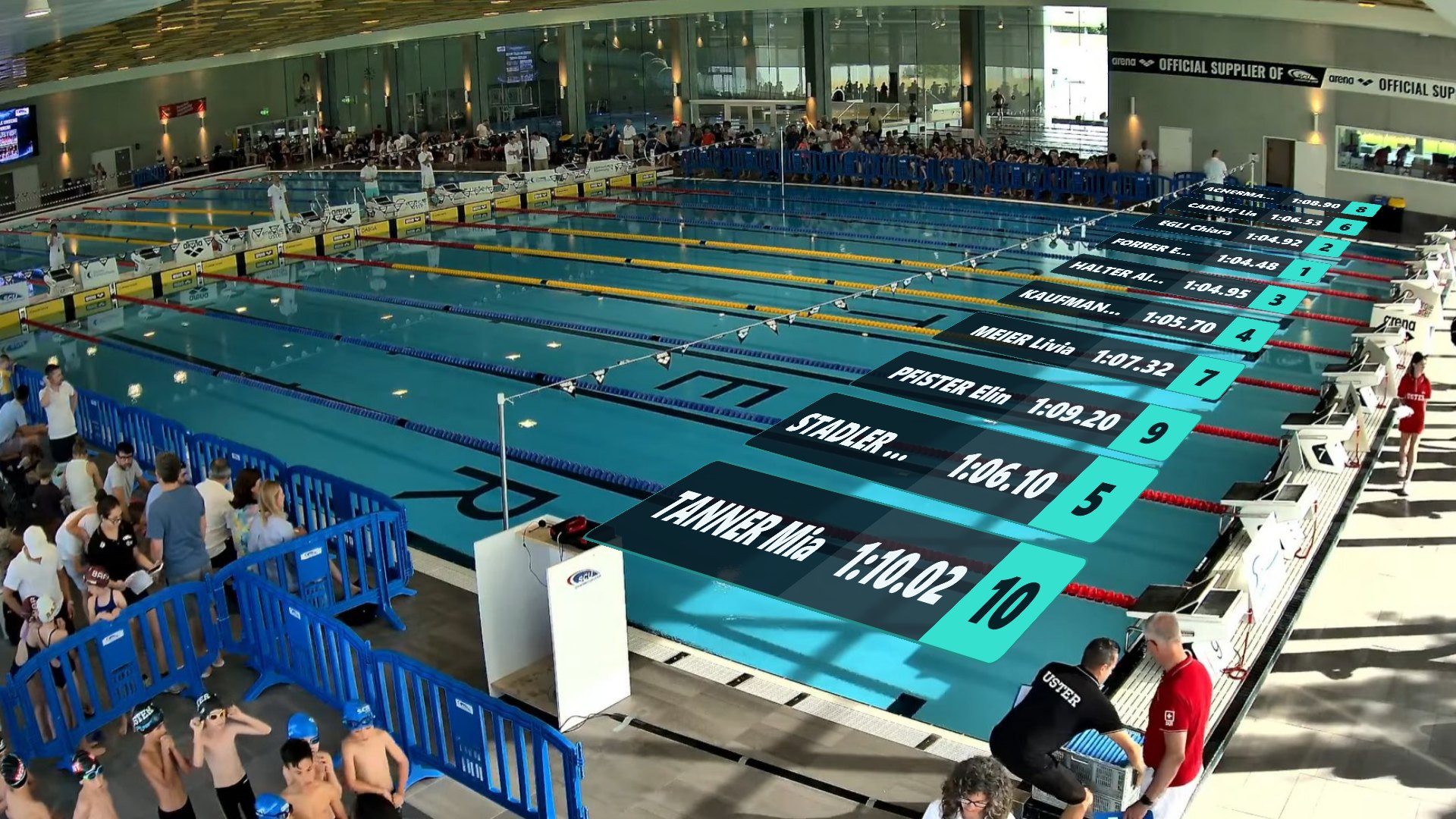
Lane labelling
Names and lane numbers lie on the water in perspective, as in major broadcasts. Calibrated once to the camera position, it holds for the whole meet.

In the venue
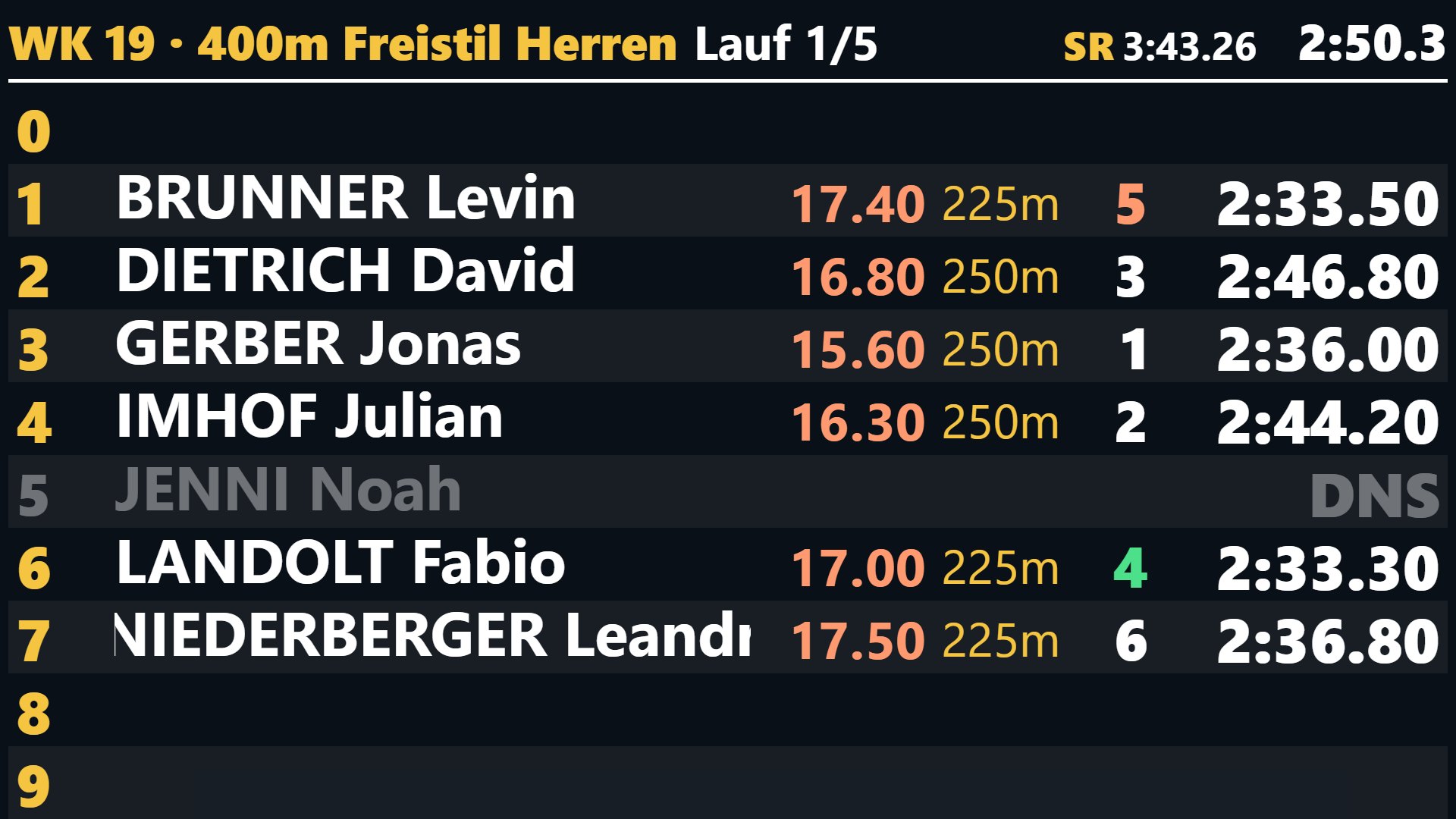
Start list and race
All lanes with names and club codes, then the running race with lap time, distance, place and time. Up to three displays, each with its own resolution.

Results
After the result is official, places with a gold badge and colour-coded times. A sponsor image can appear between heats.

Countdown
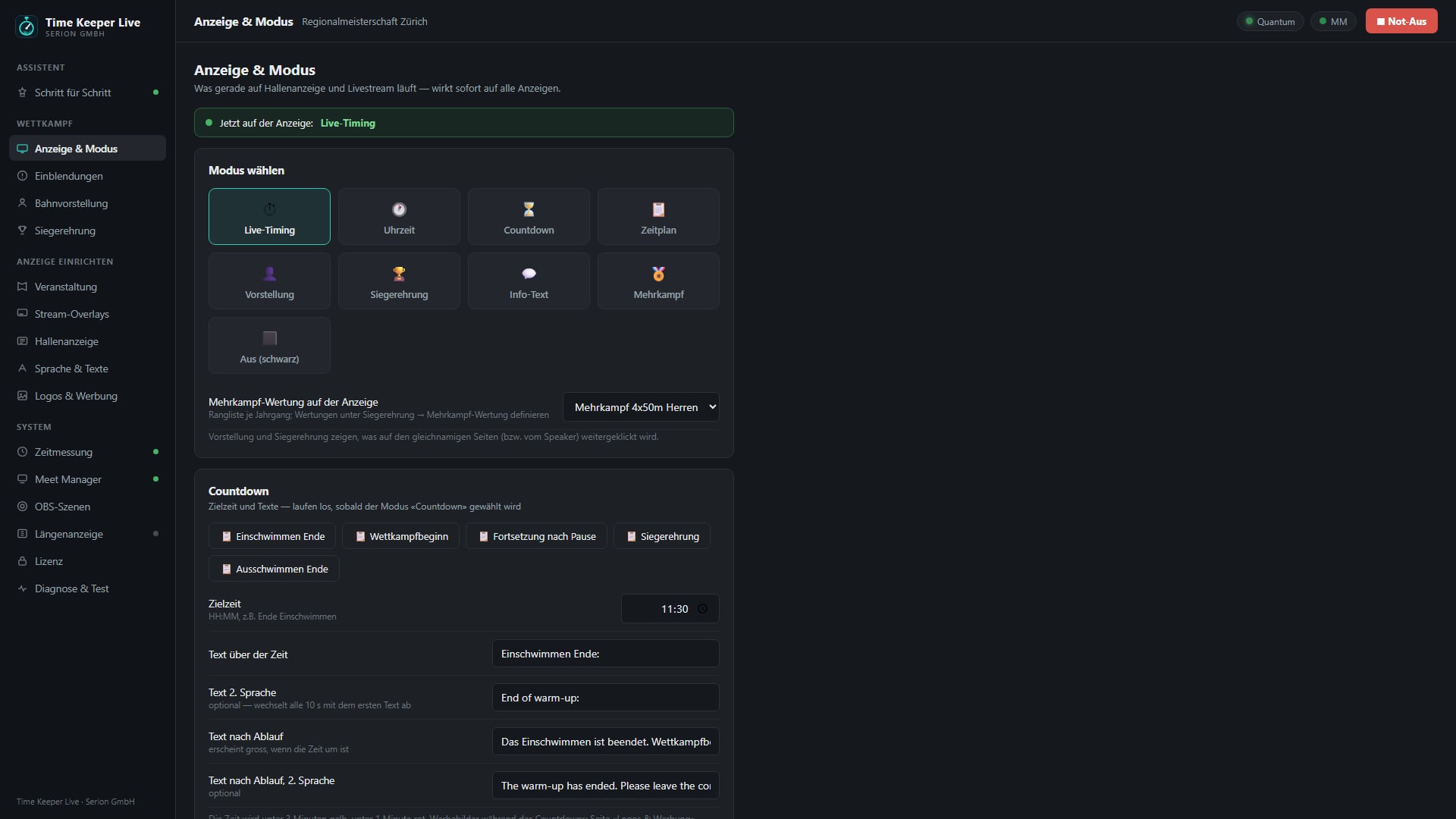
End of warm-up, start of the meet, resuming after the break: bilingual, with advertising slots and a quiet period before the start.

Announcements
Free text for announcements, with a wall clock and an optional animated swimming smiley. It can appear in the stream at the same time.

Schedule
The current session with start times and number of heats; it turns pages automatically when there are many events.

Lane introductions
The announcer steps through the lanes of the heat: lane, name, club and entry time appear one by one, in four selectable orders.

For announcer and control desk
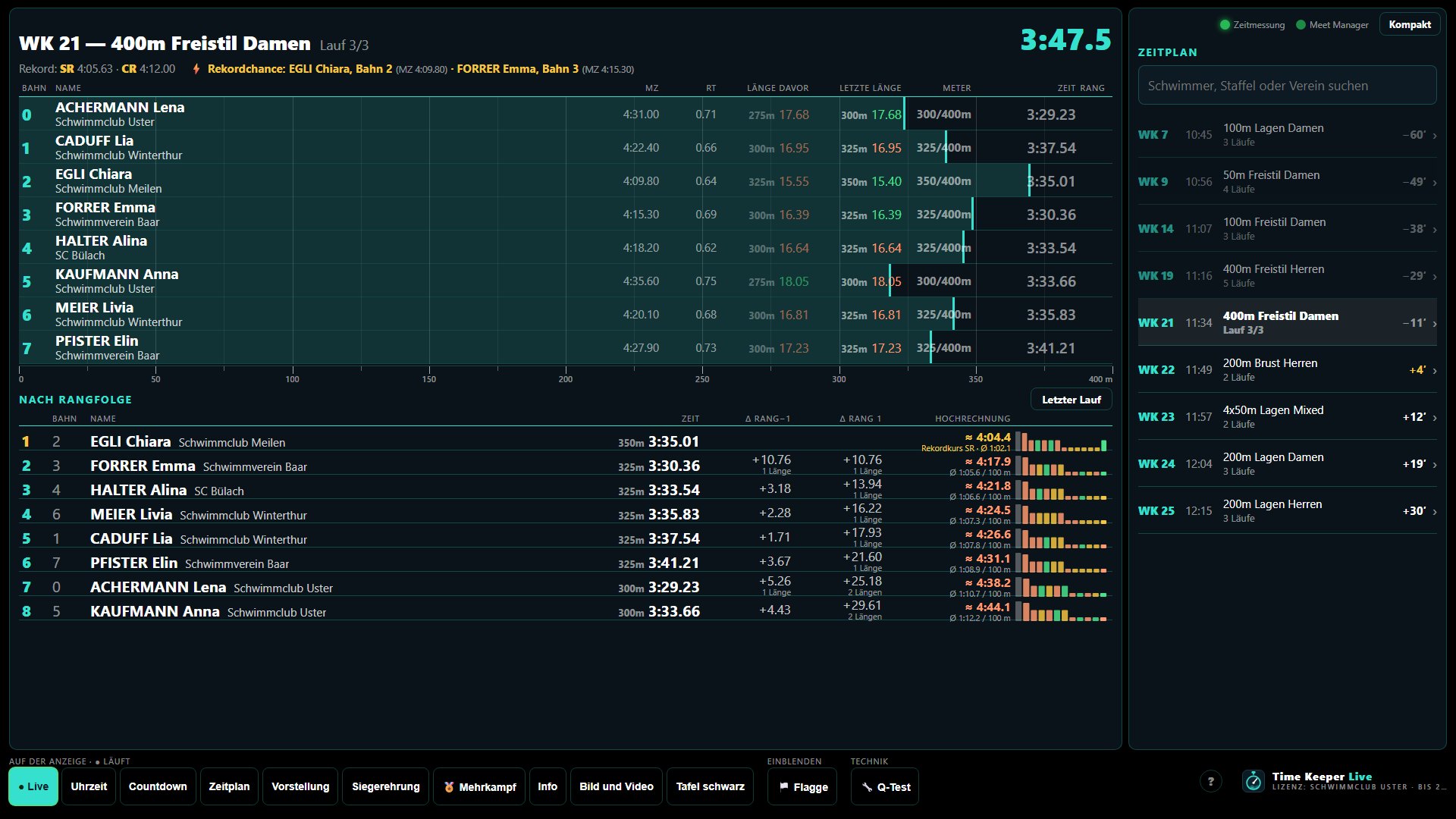
Announcer monitor
The previous heat on the left to read from, the current heat in the middle with progress bars, distance covered, ranking and split trend lines, the schedule on the right. A large badge shows unofficial or official.

Running the ceremony
Fetch the ranking from Meet Manager, call up the event, step through the places with one button: which always says who is next.

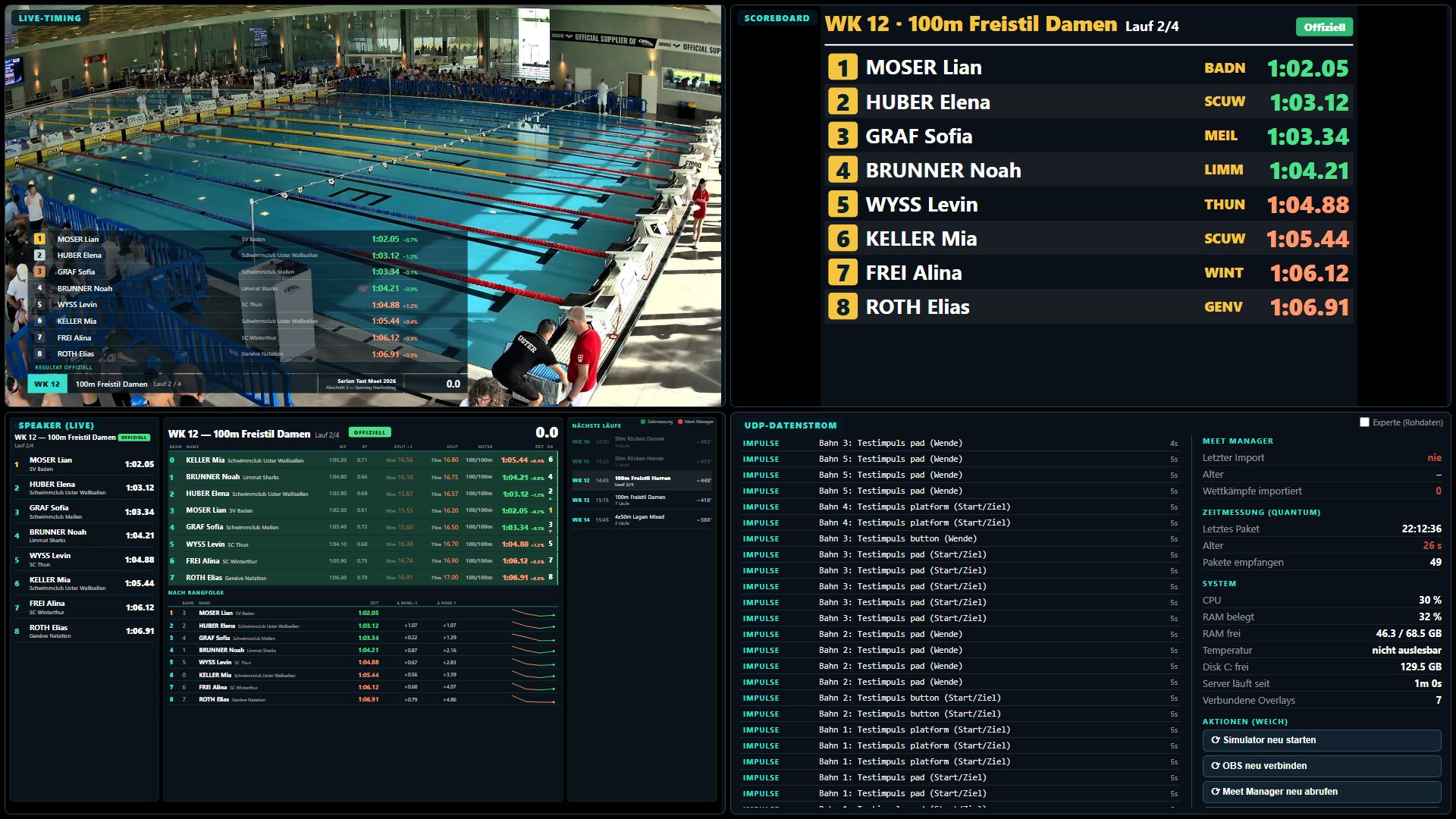
Control monitor
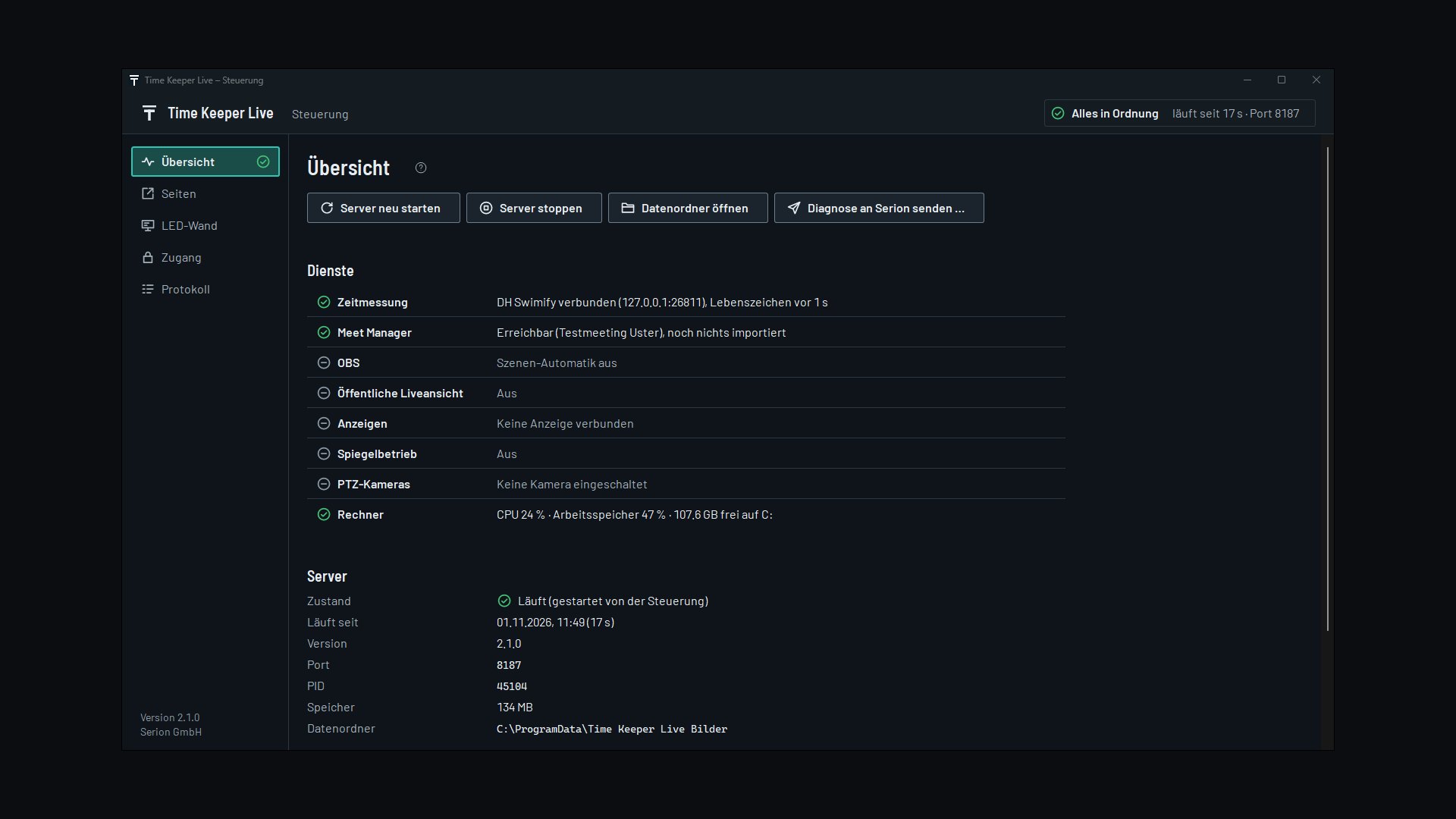
All displays side by side, plus the data stream and statistics: when did the last data arrive? Is the Meet Manager import current? How is the computer doing? With gentle recovery actions when something goes wrong.

Testing the cabling
During setup, test mode shows every pulse: touchpad, starting block or semi-automatic button, counted per lane and pool end. Visible on the big display instead of only on the timing computer.

Setting up and connecting
Control panel
Everything in one place: meet, display durations, overlay position, colours, wording, name formatting: usable from a phone as well.

Meet Manager
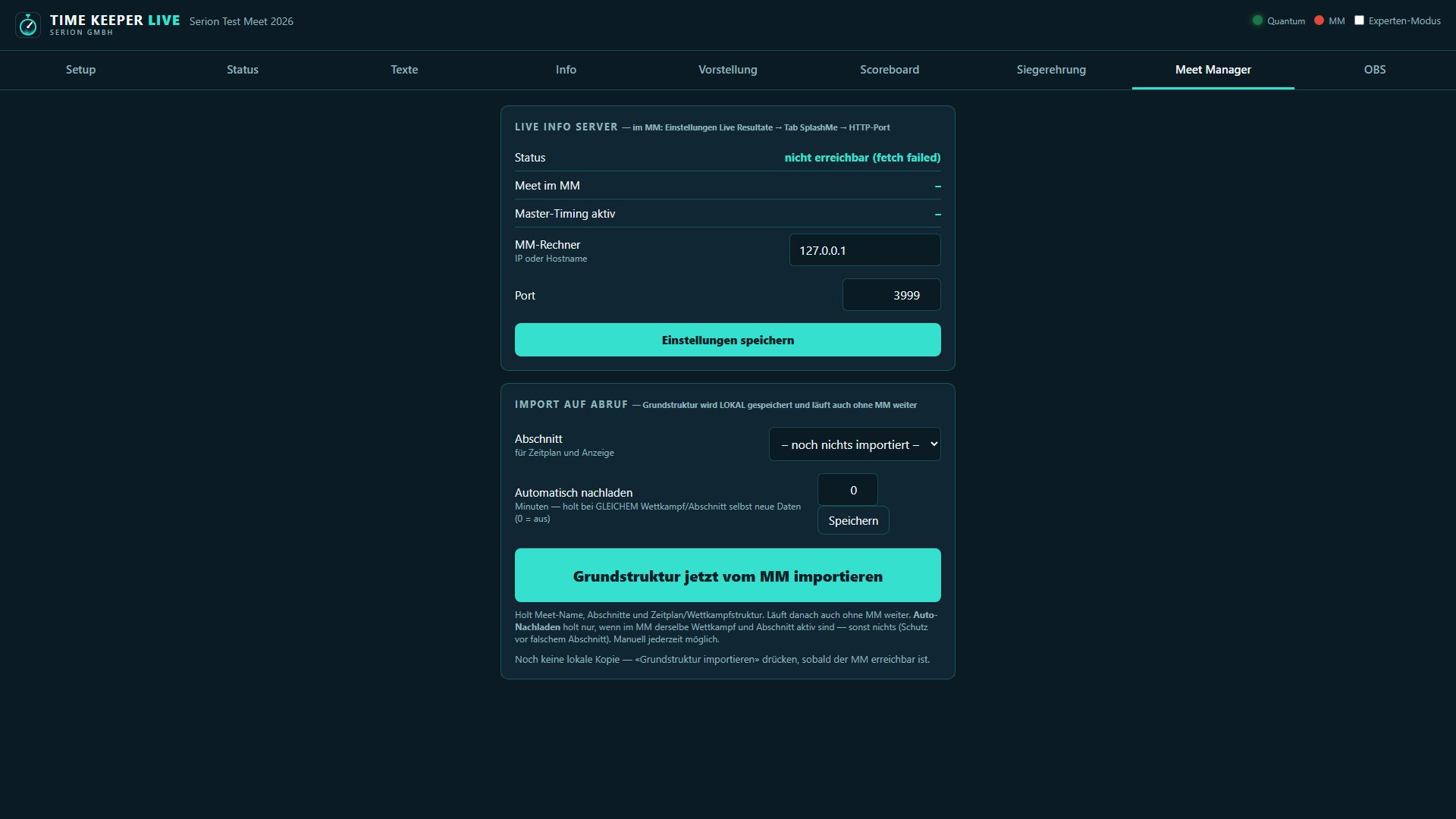
Start lists, names, club codes, entry times, schedule and results come from Splash Meet Manager. The import is stored locally: the meet carries on even when Meet Manager is temporarily unreachable.

OBS scenes
One scene per event and, if you want, a second one a few seconds later. Scene names come live from OBS and every assignment has a test button.

Timing system in view
A diagnostic page shows what the timing system is sending: useful at first setup and whenever something misbehaves at the pool.

Requirements
| Computer | Windows 10 or 11, 8 GB of memory is enough. An ordinary laptop will do. |
|---|---|
| Timing | Swiss Timing / OMEGA Quantum with the DH Swimify interface (TCP). A simulator is built in for testing and setup. |
| Entry data | Splash Meet Manager with the Live Info Server switched on (optional, but recommended). |
| Livestream | OBS Studio 28 or newer: the overlays are added as a browser source. |
| Displays | Any screen, projector or LED wall with a full-screen browser, up to three with their own resolution. |
| Network | All devices on the same network. No internet needed. |