The live view as an app
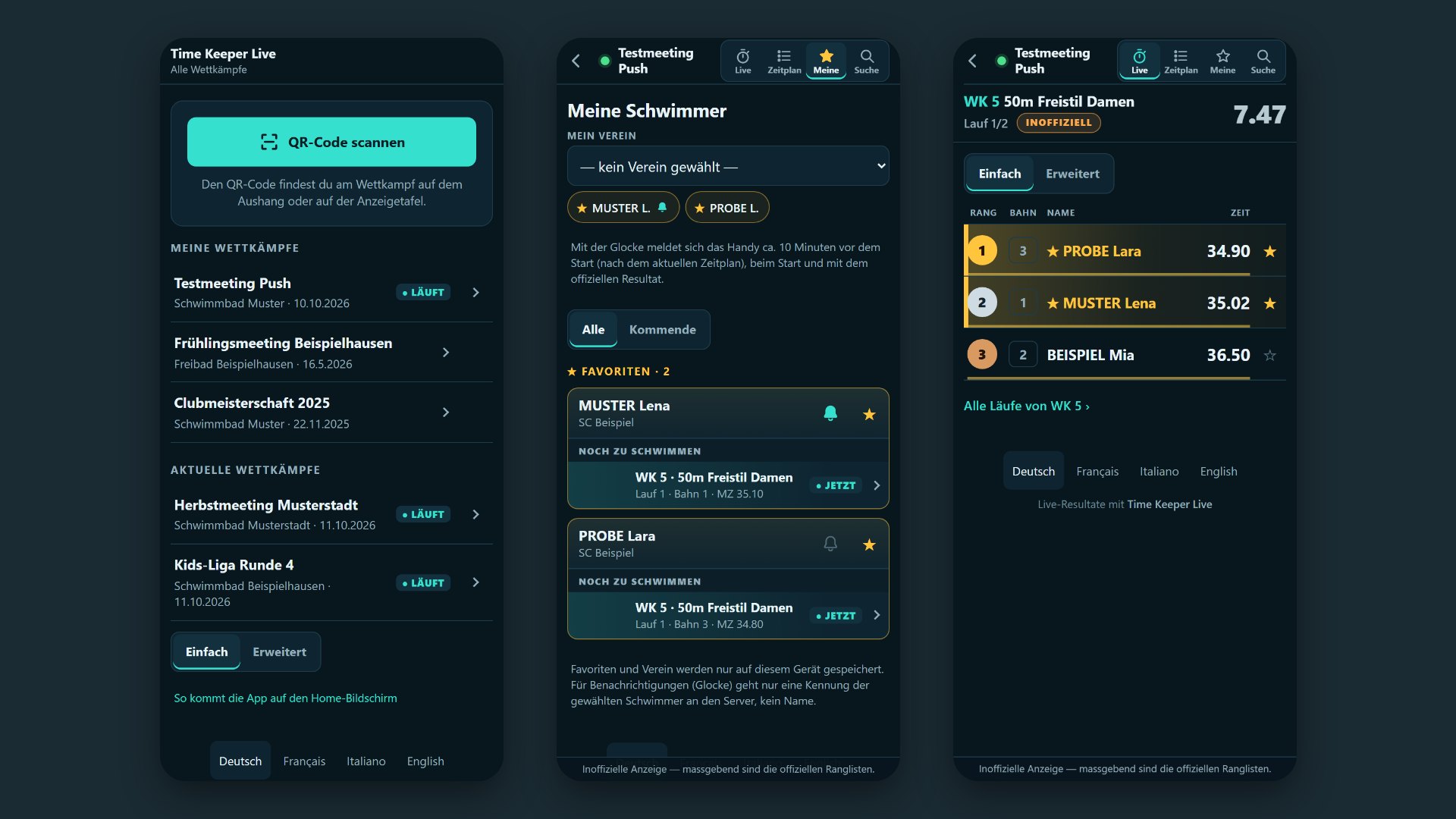
One icon on your Home Screen and all competitions are in one place; with the bell, your phone alerts you shortly before your child’s start. You need neither an app store nor an account, and it is free.
iPhone and iPad
Safari
- Open the live view: scan the QR code with the camera or tap “Open live view” above.
- Tap the Share icon (square with an arrow pointing up). On newer iOS versions, tap the three dots first.
- Choose “Add to Home Screen”, scrolling down the list if needed.
- Tap “Add”. The “TimeKeeper” icon appears on your Home Screen.
Chrome, Edge or Firefox
Since iOS 16.4 this also works in these browsers.
- Open the live view and tap the Share icon (in the address bar or in the menu).
- Choose “Add to Home Screen” and confirm.
Notifications
On iPhone, notifications work from iOS 16.4 and only in the app on the Home Screen. Open the app, tap the bell next to the swimmer and choose “Allow”. The app has its own storage: favourites set earlier in Safari need to be set again in the app.
Android
Chrome
- Open the live view.
- “Add to Home Screen” appears at the bottom with an “Install” button. Tap the button.
- If no button appears: open the three-dot menu at the top right and choose “Install app” or “Add to Home screen”.
Samsung Internet
- Open the live view.
- Open the three-line menu at the bottom right, choose “Add page to” and then “Home screen”. Or tap the install icon in the address bar.
Firefox
- Open the live view.
- Open the three-dot menu and choose “Install” or “Add to Home screen”.
Edge
- Open the live view.
- Open the three-dot menu at the bottom and choose “Add to phone” or “Install app”.
Notifications
Tap the bell next to the swimmer and choose “Allow”. On Android, notifications also arrive without the app, straight from the browser. Exact menu names may differ slightly depending on the version.
What the app does
- My competitions
- Every competition you have opened once stays in the list, even weeks later. Stored on your phone only.
- Current competitions
- Whatever is running or starting soon and is publicly listed appears right below.
- Scan QR code
- At the venue a QR code is posted or shown on the scoreboard. Tap “Scan QR code” in the app: the competition opens and then appears under “My competitions”.
- Bell
- Next to a swimmer’s star: notification about 10 minutes before the start (based on the current schedule, delays included), at the start and with the official result.
- Simple or detailed
- The simple view shows what matters. “Detailed” adds splits, entry times, code entry and tidying up the list.
Frequently asked questions
I don’t get any notification.
Check that notifications are allowed for the app or browser in your phone settings and that “Do Not Disturb” or a Focus mode is not active. On iPhone they only arrive in the app on the Home Screen. The “in about 10 minutes” alert only exists if the organiser has imported the schedule from Meet Manager.
Does the app cost anything?
No. You need neither an account nor an app store.
How long can I see past competitions?
Competitions stay online for 12 months after the last heat, winner photos for 3 months.
What data is stored?
Favourites and your list of competitions stay on your phone. For notifications only an identifier of the swimmers is sent to the server, never the name. More in the privacy statement